
Combine Images Online
Drop two photos or twenty, pick side by side, top to bottom or a grid, and download one merged picture. Heights are matched for you, spacing and background are one slider each, and the files never leave your device.
Getting the upload area ready…
This only takes a moment

- What it does
- Many photos → one image
- Layouts
- Horizontal · vertical · grid
- Where it runs
- 100% in your browser
- Price
- Free · no sign-up
The quickest way to put two photos next to each other
Drop the pictures, click a layout, press Ctrl/⌘ S. Heights are matched automatically, so a before/after or a product line-up comes out tidy without opening an editor.
How to combine images
Three steps, any number of photos.
- 1
Add your photos
Drop them in, click to choose, or paste a screenshot with Ctrl/⌘ V. Add more any time.
- 2
Pick a layout
Side by side, top to bottom, or a grid with 1–6 columns. Reorder with the arrows, set spacing and background.
- 3
Download
Save one PNG, JPG or WebP. Big strips are scaled to stay under 16,384 px so every browser can open them.
What a combine-images tool actually does
It draws every photo onto one new canvas. In side-by-side mode each picture is scaled to the height of the shortest one, so the row lines up; top-to-bottom matches widths instead; grid mode gives every photo an equal cell and keeps its proportions. The gap you set is added between pictures and around the edge in the background color you pick.
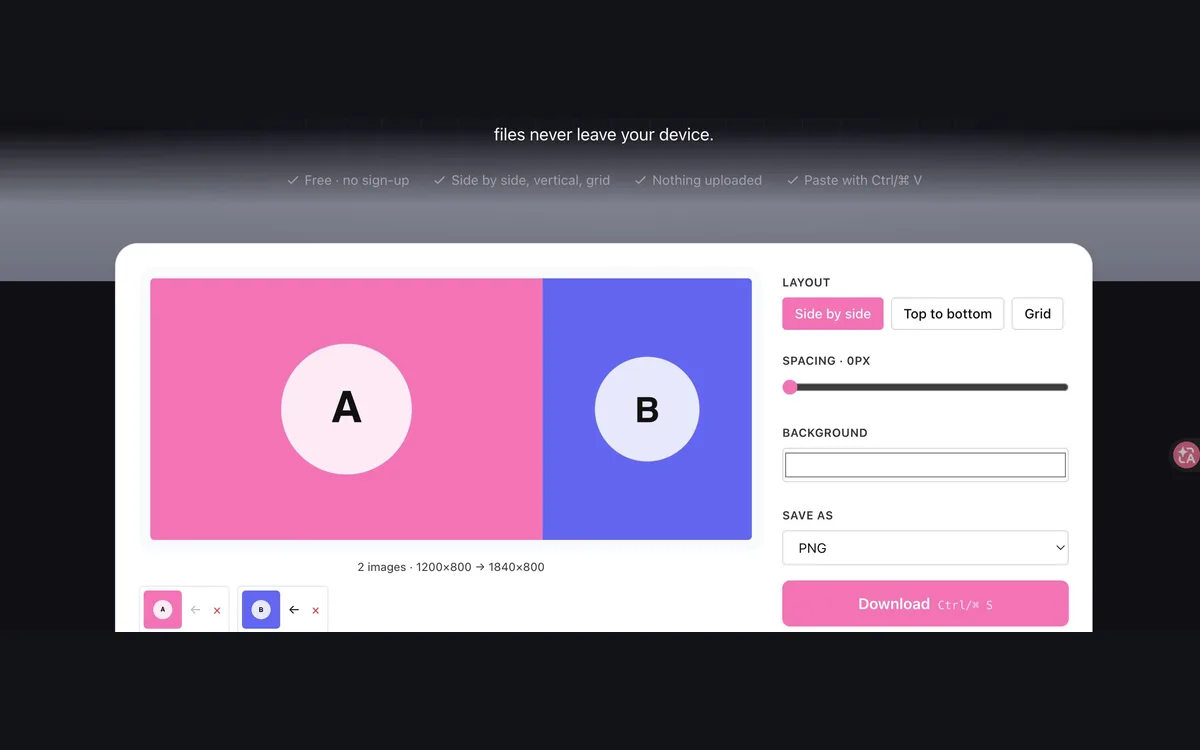
- Matched sizes — No ragged edges: rows share a height, columns share a width.
- Any order — Move a photo earlier with ←, drop it with ×, add more with drag or paste.
- Any format in — JPG, PNG, WebP, GIF (first frame), AVIF, JFIF and screenshots.
Side by side, vertical or grid — which to pick
Side by side suits before/after shots, comparisons and two-up social posts. Top to bottom builds a long image: chat screenshots, recipes, step-by-step guides. A grid is for product line-ups, mood boards and photo dumps; two columns read well on phones, three or four on desktop.
- Before / after — Two photos, side by side, a 10–20 px white gap.
- Long screenshot — Chat or web screenshots stacked top to bottom with no gap.
- Collage — A 3×3 grid of nine photos for a recap post.
Keyboard shortcuts
Every ChatImg image tool takes the same keys, so the second tool you use is already familiar. Shortcuts work anywhere on the page except while you type in a text box.
- Ctrl / ⌘ + V — Paste an image straight from the clipboard — a screenshot, a copied photo, a file from Finder or Explorer.
- O — Open the file picker.
- Ctrl / ⌘ + S — Download the result (a ZIP when there are several files).
- Delete — Clear the tool and start over.
Nothing is uploaded
The picture is decoded and redrawn by your browser's canvas on your own device. There is no server step, so there is no upload wait, no file-size limit to pay around, no watermark and no account. Close the tab and no copy exists anywhere else.
- Private — IDs, contracts, family photos — fine to use here, because they never leave the device.
- Free, no limits — No daily cap, no size cap, no sign-up wall.
- Works offline — Once the page has loaded, the tool keeps working without a connection.
What people combine images for
The jobs this tool finishes in under a minute.
Before and after
Renovations, edits, skincare, haircuts — one image, two states.
Chat and receipt screenshots
Stack several phone screenshots into one image to share or file.
Product line-ups
Put every color or angle in one picture for a listing or a slide.
More free image tools
All of them run in your browser — free, no sign-up, nothing uploaded.
FAQ'S
Frequently Asked Questions
Ask us anything!
Need more than an edit? Ask the AI.
These tools move pixels. ChatImg's AI changes what is in the picture: swap a background, restyle a photo, restore an old print or generate a new image from a sentence. Free to start.