
Crop Image Online
Pick a ratio — square for a profile picture, 4:5 for Instagram, 16:9 for a thumbnail, 9:16 for a story — then zoom and slide the frame. The preview is the file you get, at full resolution, made on your device.
Getting the upload area ready…
This only takes a moment

- What it does
- Crops to a ratio
- Ratios
- 1:1 · 4:5 · 16:9 · 9:16 · 3:2
- Where it runs
- 100% in your browser
- Price
- Free · no sign-up
Pick the ratio first, then frame the shot
Most crop jobs are really 'make this fit a slot': a square avatar, a 16:9 thumbnail, a 4:5 feed post. Choosing the ratio first and then sliding the frame gets there in two clicks, with no stray pixel off.
How to crop an image
Ratio, frame, save.
- 1
Add the photo
Drop it, choose it, or paste a screenshot with Ctrl/⌘ V.
- 2
Choose the ratio and frame
Click 1:1, 4:5, 16:9 or another preset. Zoom in, then use the two sliders to move the frame.
- 3
Download
Save as PNG, JPG or WebP at the original pixel density.
What this image cropper does
It cuts a rectangle out of your photo at the exact aspect ratio you choose and saves only that part. The frame starts as large as the photo allows, centered; zoom makes it smaller, and the left↔right and top↕bottom sliders move it. Nothing is resampled — the pixels inside the frame are the original pixels.
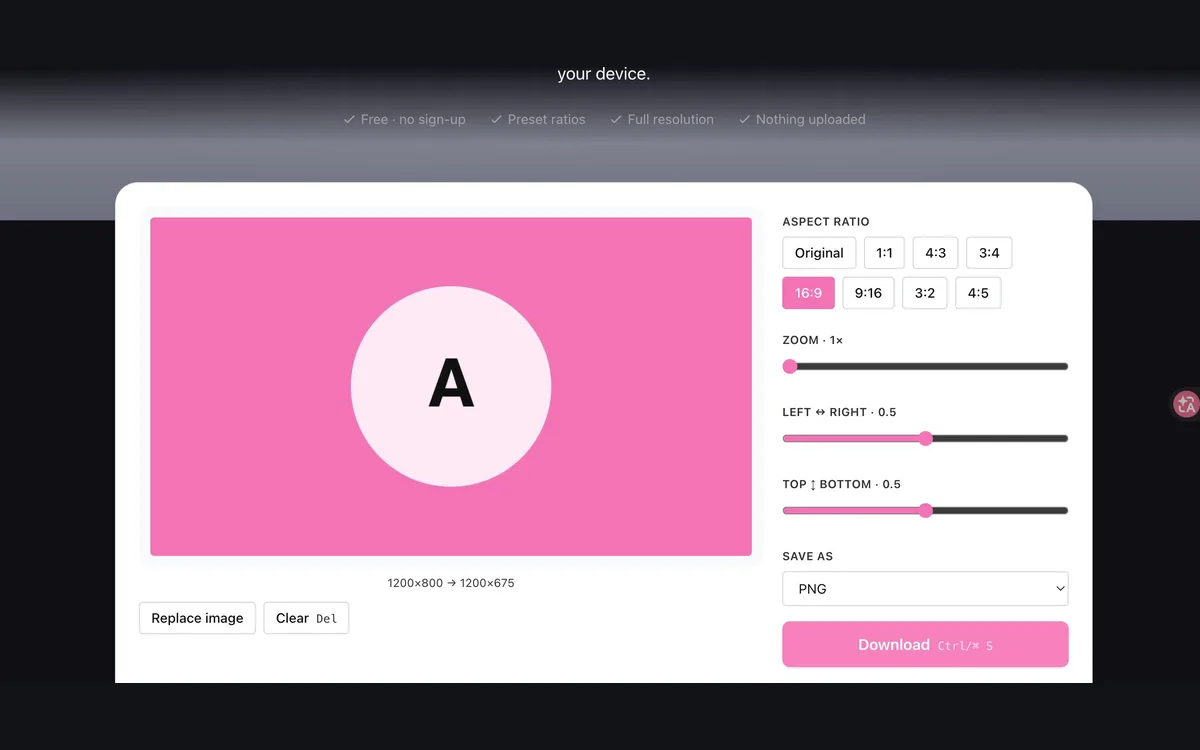
- Exact ratios — 1:1, 4:3, 3:4, 16:9, 9:16, 3:2 and 4:5, or keep the original ratio and just zoom.
- No quality loss — Cropping removes pixels; it does not blur the ones you keep.
- Live preview — What you see is the exact file you download.
Which ratio for which place
1:1 for profile pictures and marketplace listings. 4:5 is the tallest Instagram feed post. 16:9 for YouTube thumbnails, slides and desktop wallpapers. 9:16 for stories, Reels and TikTok covers. 3:2 is the native shape of most camera photos and prints.
- Profile picture — 1:1, face centered; use Circle Crop if the site shows round avatars.
- Thumbnail — 16:9, subject on a third, room for a title.
- Story / Reel cover — 9:16, keep text away from the top and bottom 15%.
Keyboard shortcuts
Every ChatImg image tool takes the same keys, so the second tool you use is already familiar. Shortcuts work anywhere on the page except while you type in a text box.
- Ctrl / ⌘ + V — Paste an image straight from the clipboard — a screenshot, a copied photo, a file from Finder or Explorer.
- O — Open the file picker.
- Ctrl / ⌘ + S — Download the result (a ZIP when there are several files).
- Delete — Clear the tool and start over.
Nothing is uploaded
The picture is decoded and redrawn by your browser's canvas on your own device. There is no server step, so there is no upload wait, no file-size limit to pay around, no watermark and no account. Close the tab and no copy exists anywhere else.
- Private — IDs, contracts, family photos — fine to use here, because they never leave the device.
- Free, no limits — No daily cap, no size cap, no sign-up wall.
- Works offline — Once the page has loaded, the tool keeps working without a connection.
What people crop images for
Common jobs, done in seconds.
Social posts
Fit a landscape photo into a 4:5 feed post or a 9:16 story.
Listings
Square product photos so a shop grid looks even.
Screenshots
Trim a screenshot down to the part that matters before you send it.
More free image tools
All of them run in your browser — free, no sign-up, nothing uploaded.
FAQ'S
Frequently Asked Questions
Ask us anything!
Need more than an edit? Ask the AI.
These tools move pixels. ChatImg's AI changes what is in the picture: swap a background, restyle a photo, restore an old print or generate a new image from a sentence. Free to start.