How to Fix AI Image Deformities: Extra Fingers, Warped Faces — Don't Reroll | ChatIMG

The poster is already usable: the light is right, the product is in frame, the headline sits where it should. You zoom to 100% and see the hand holding the cup—six fingers, two of them fused into the handle. So you hit regenerate. Four tries later, the hand is fine. The product label is mush. Yesterday’s aligned shadow is gone.
Most tutorials write this as “write a better prompt.” The 2026 time-saver is: once the composition is right, don’t gamble the whole image for one hand. Deformities still happen—especially with multiple people, crossed hands, or something in the grip. What changed is the fix: mask a patch and inpaint, or change only the named region with one sentence.
This is a how-to, not a model ranking. For how to split the three image-to-image jobs, see the pillar How to pick an image-to-image tool. Here we only answer: how to classify deformities, how to accept an inpaint, how to chat-edit when you cannot draw a selection, and when you should actually reroll.
Table of Contents
- Why Not Reroll the Whole Image
- Classify First: Hands, Limbs, Faces, Text
- Inpaint: Fix Only the Broken Patch
- Conversational Edit: The Path When You Can’t Draw a Selection
- When You Should Actually Reroll
- A Repeatable Five-Step Workflow
- FAQ
Why Not Reroll the Whole Image
The takeaway: when composition, light, and subject are already right, rerolling the whole image trades four things that work for luck on one hand.
Diffusion models still misdraw high-variance, often-occluded structures. Hands are the classic case: many joints, often blocked by a cup or a sleeve. A 2026 editing handbook writes “the six-finger era is over” and “crossed hands and held objects are still the first place to look” as the same sentence (ArtsFlick deformity catalog). Another public handbook pulls the hit rate from “about one perfect image in twenty” to “about one usable image in three,” with only three conditions: you can edit locally, you can expand the canvas, and you can run an acceptance check (AI Image Generation Handbook).
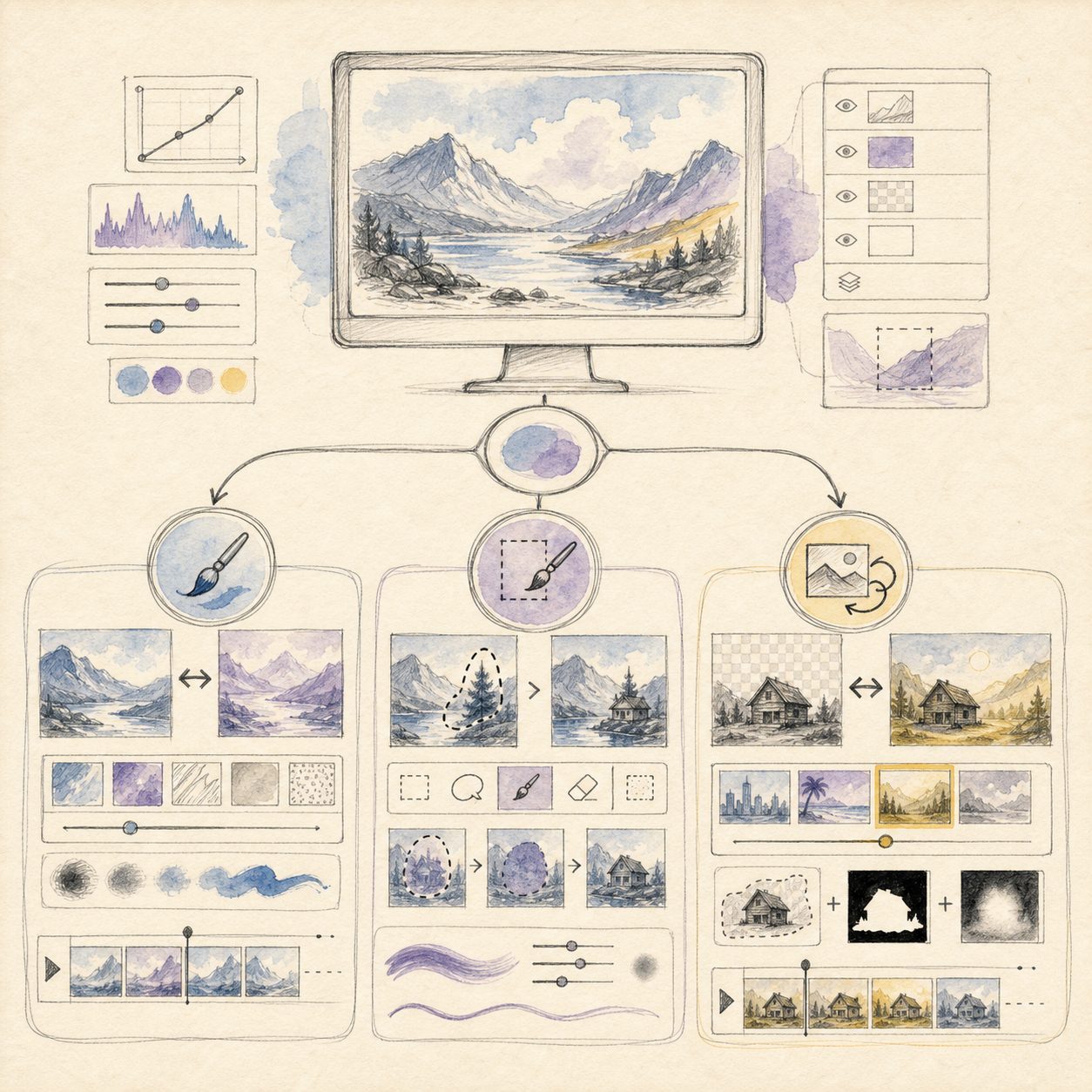
The academic definition of instruction-based editing is older. InstructPix2Pix (Brooks, Holynski, Efros, November 2022, CVPR 2023) showed that an existing image plus a sentence of instruction is enough for a model to apply the edit—no per-image fine-tune required. Today’s products wrap that sentence in two shells: masked inpainting, and conversational image editing.
Illustration: the three image-to-image jobs. Fixing fingers and faces is inpainting, not full-frame style transfer. Source: ChatIMG.
Practical rule: If the image already has three things you want to keep, don’t hit “regenerate.” Ask first: “which patch is broken?”
Classify First: Hands, Limbs, Faces, Text
The four deformities do not share a fix. Name one, then act. Mix them in a single inpaint and the model will drift the parts that were not broken.
| Deformity | Spot it at a glance | Fastest fix |
|---|---|---|
| Hand / fingers | Wrong count, reversed thumb, grip fused into the cup | Mask the whole hand (with wrist margin), inpaint that patch |
| Extra limb | A third leg behind the chair, a half-arm growing from a shoulder | Erase first, let the surroundings fill in; cheaper than “fixing it” |
| Face / teeth / pupils | Asymmetric eyes, teeth turned to mush | Mask the face only; do not redraw hair and background with it |
| Garbled in-image text | Strokes in the background that look like letters but aren’t | Inpaint the text region with the original sentence, or cover it with a patch |
ArtsFlick’s 2026 catalog adds two more that you should not brute-force with a local edit: light from two directions, and textures that tile everywhere. Wrong light direction is not saved by filling in a patch of skin; texture tiling is usually cleaner if you crop tighter or push the background out of focus.
Classify with a print eye, not a prompt eye. View the image at the size you will actually use: avatars, look at the face; posters, look at hands and type; product shots, look at the grip. A deformity you cannot see, leave unfixed.
Practical rule: Name only one deformity per pass. Putting fingers and a face in the same inpaint is asking the model to re-guess the whole portrait.
Inpaint: Fix Only the Broken Patch
Inpainting has one acceptance test: the pixels you did not paint over, are they still there? The hand is better but the cuff is a different fabric—that pass failed.
A public handbook writes the steps tightly; you do not need to invent a new flow (Editing and Inpainting Like a Pro):
- Mask one ring larger than the defect. Trace only the broken fingertip and the model has no wrist or palm as context.
- The prompt describes only how this patch should look. Do not paste the original full-image prompt back in.
- Keep denoising strength low (the handbook’s rule-of-thumb range is about 0.4–0.6). Too high, the new hand will not join the old cuff; too low, six fingers remain.
- Generate a few local variants in one pass, pick one hand, and do not stack endlessly on the same patch.
Held objects are 2026’s “new six fingers”: the count is right, but they fuse with the cup handle, knife hilt, or phone bezel. The mask must include the contact surface; the prompt should say clearly “five fingers separately gripping the cup handle, handle shape unchanged.”
If the hand is too far gone to be worth fixing, erase instead of inpaint: extra arms, a third hand reaching in from the frame edge—wipe them and let the background fill in. Usually faster than “make it a normal person.”
Midjourney’s official tutorial “5 Ways to Use Images” shows sending an existing image back into the model, not gambling composition from scratch—use it to set the expectation that “the image stays, only part of it changes.”
Demo: the official “5 Ways to Use Images.” Source: YouTube · Midjourney. Pair this with “protect the composition first” in this article.
The split between professional selection tools and conversational editing is on this site: Local edit vs. conversational image editing. Need to see the boundary → selection. Need one sentence → conversation.
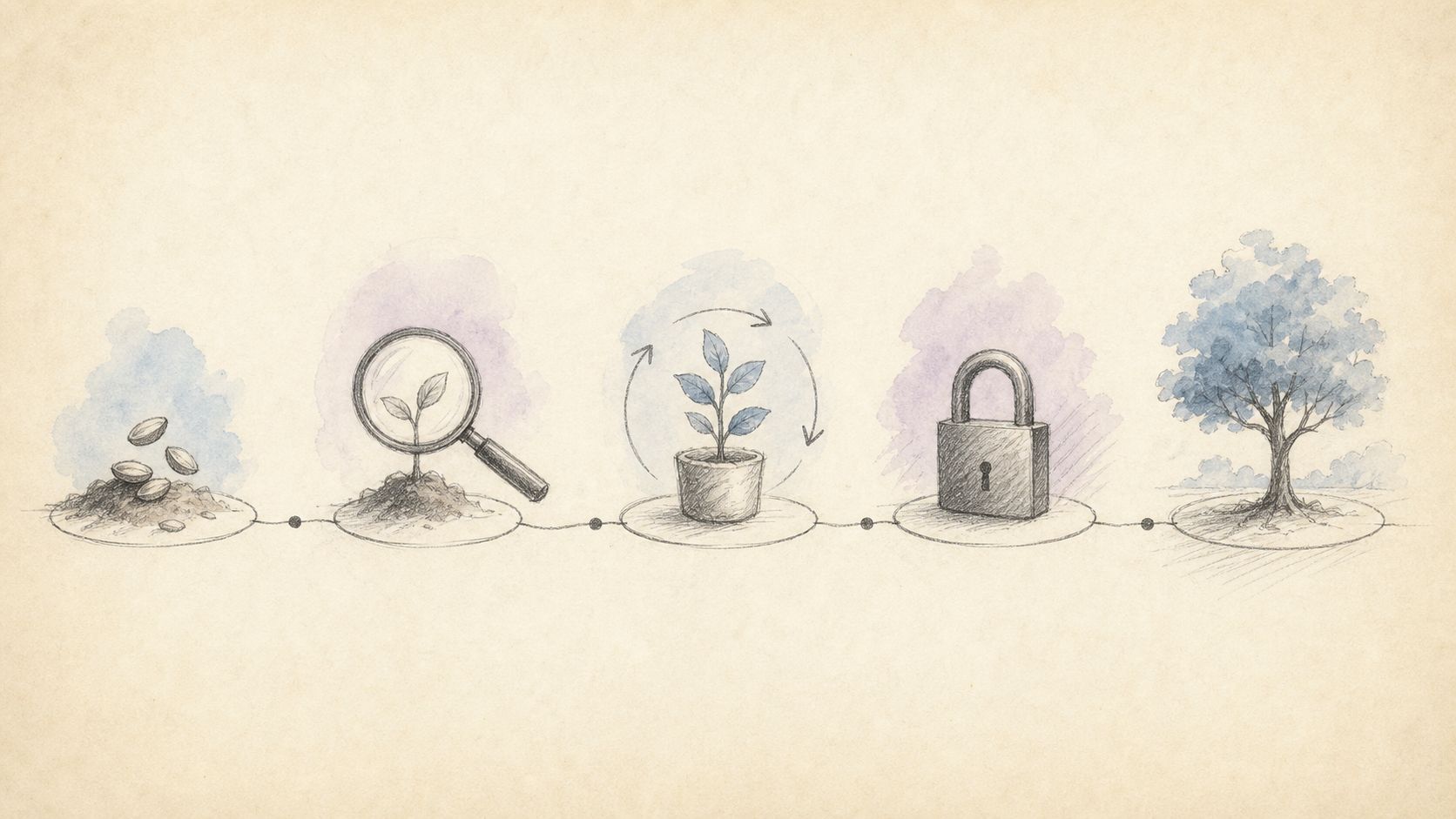
Illustration: one change at a time. Source: existing ChatIMG workflow diagram.
Practical rule: The mask includes the wrist; the prompt includes “five fingers + skin and light matching the original.” Drop either clause and the new hand will look pasted on.
Conversational Edit: The Path When You Can’t Draw a Selection
When you cannot draw a mask, conversational editing replaces the brush with a sentence. It is not lazier inpainting. It is a different set of finger moves.
The original InstructPix2Pix paper already treated a written instruction as the input, not a mask. Product-layer conversational editing follows that path: upload an existing image, say “change the cup-holding hand to five fingers, don’t fuse them into the handle,” and check whether the unnamed label and shadow are still there.
When conversation fits:
- You can name what is wrong (“left hand,” “the second line on the poster”) but cannot name a pixel range.
- One variable per turn. First sentence fixes the hand; the second sentence is allowed to change the background.
- You need it done in the browser, without opening a desktop inpainting node.
When conversation does not fit: fine-line structure like gold jewelry, a logo edge that must land on a specific pixel, two light sources fighting each other. Those go to erase, to a professional selection, or to a full relight.
ChatIMG makes conversation the entry you can try as soon as you open it: upload a photo, name the spot to fix in one sentence. It does not replace Photoshop-style generative fill, and it does not replace inpainting models in a node workflow. It replaces “rerolling a usable poster until the client no longer recognizes the product—all for one finger.”
To edit from your own photo instead of regenerating from a blank prompt, the feature page is AI Image Generator.
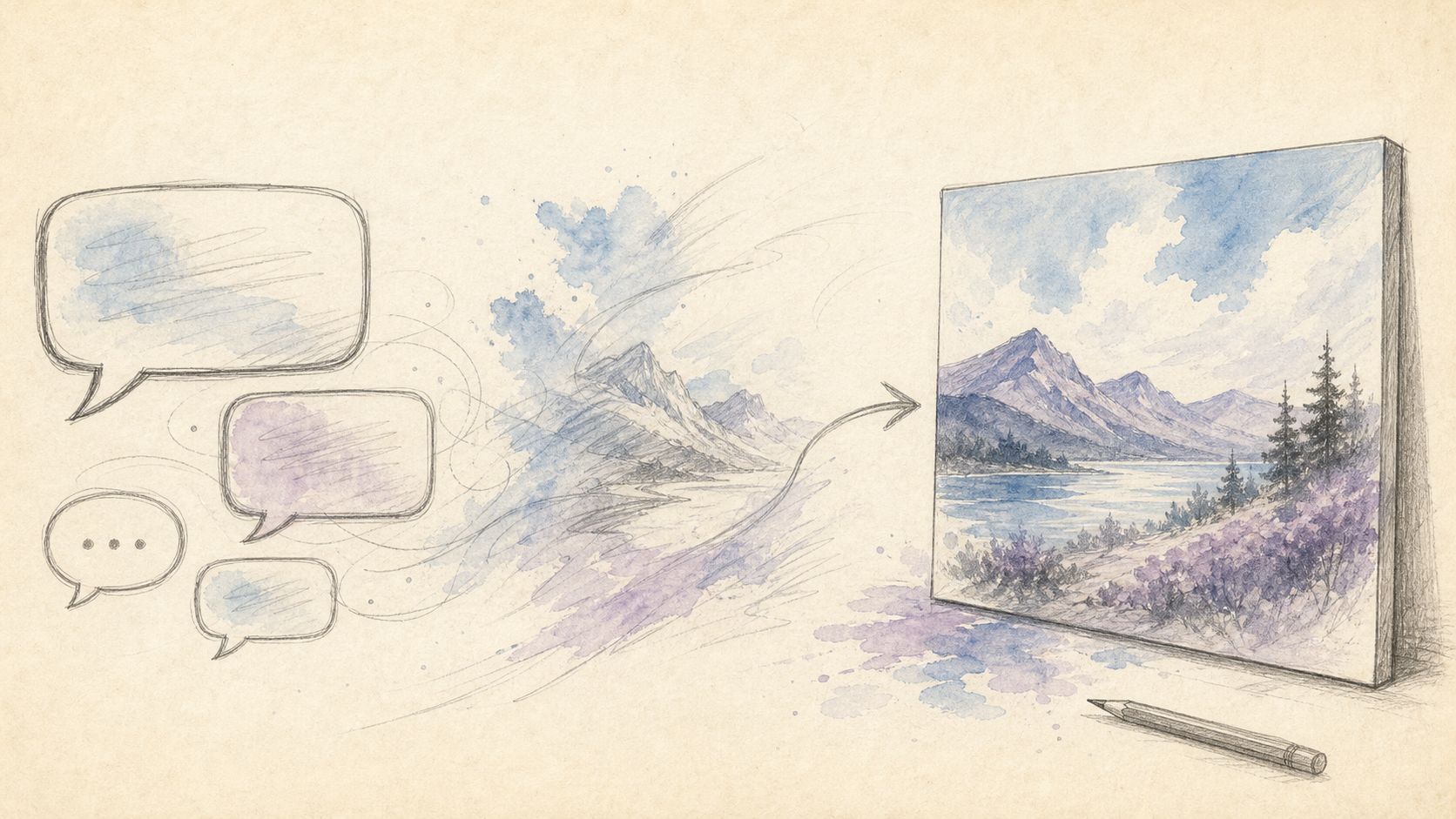
Illustration: conversational workflow. Source: ChatIMG.
Decision filter: Can draw the boundary → inpaint. Can only say “left hand” → conversation. Both lights are wrong → don’t patch, relight.
When You Should Actually Reroll
A full reroll is reserved for “the structure never held,” not for one hand.
Signals that you should reroll:
- Perspective has already collapsed (the table and the wall are not in the same space). A local skin fill will not bring it back.
- Subject identity has drifted—this is no longer the same person, or the same product.
- The hand you need should never have been in the composition: cropping is cheaper than fixing.
- Text is the main subject, and the generator drew the headline as gibberish. This image should have started on a tool with more stable type; see the Ideogram column in How to pick a Midjourney alternative.
Signals that you should not reroll: only one hand, one small line of type, or one extra small object, and the rest is right. Rerolling then wastes composition you already paid for.
I treat “reroll” as the last step, written at the exit of the workflow, not as the default button. The default button is: classify → inpaint or conversation → accept the pixels you did not paint over.
A Repeatable Five-Step Workflow
Fold the above into five steps you can repeat every day:
- Zoom to real size, and circle only one deformity.
- Pick the fix: hands and faces go to inpaint or conversation; extra limbs go to erase; dual light sources go to a relight.
- One variable at a time. Fix the hand, then touch the background. Do not write “while you’re at it.”
- Accept unnamed regions. Cuff, label, shadow, the other eye—missing any one of them is a fail.
- Save a version you can roll back to. If the next sentence breaks it, return to the frame where the hand was already right. Do not stack ten edits on one chain.
Open chatimg.ai, upload the image that is “already usable, just one hand short,” and name the spot to fix in one sentence. From today, make reroll the exception, not the habit.
FAQ
Does AI still draw six fingers in 2026?
Yes—especially with multiple people, crossed hands, or a cup or tool in the grip. Count errors are rarer; fusion into the held object is the more common failure. See the ArtsFlick deformity catalog.
How does inpainting differ from conversational editing?
Inpainting asks you to point at a region; conversational editing asks you to name the task. Need to see the boundary → the former; need one sentence → the latter. Compare Local edit vs. conversational image editing.
Can writing “must have five fingers” in the prompt prevent this at the source?
It can lower the odds; it cannot stand in for acceptance. Held objects, occlusion, and multiple people will still break. Source prompts are prevention; inpaint or conversation is the repair.
What if the hand cannot be fixed?
Two options: crop the hand out, or take it off the frame. A third hand reaching in from the edge is usually cleaner to erase than to inpaint.
Can ChatIMG open a professional node workflow directly?
No, and it does not need to. It offers conversation as the lightest path: upload, name the spot, accept. Nodes and desktop fill stay with people already using them. Try it now: chatimg.ai.
ChatIMG.ai Team
More in this series
- Image to 3D Model: The Complete 2026 Guide — From a Single Photo to Print-Ready, Game-Ready 3D Assets
- Image-to-Image Tools 2026: Style Transfer vs Inpainting vs Background Replacement — Which One Do You Need
- AI Headshot Generator 2026: The Complete LinkedIn & Professional Profile Guide (Free Tools, 5 Styles, Real Results)
- AI Pet Portrait Generator 2026: Oil Painting, Watercolor, Renaissance Pet Art (Etsy Commercial License Guide)
- AI X-Ray Image Generator 2026: Safe & Ethical Use Cases (Medical, Artistic, Educational)