How to Edit an Existing Photo With a Text Prompt Instead of Starting From Scratch (6 Tools Compared, 2026)

3-second answer: Use an editor that takes your photo plus an instruction. On ChatImg, upload the photo, type one change (“replace the sky with a sunset, keep everything else”), and the edit is applied to that photo instead of a new picture being drawn. Send the result back with the next instruction. Gemini, ChatGPT, Canva and Photoshop’s Generative Fill do the same job with different trade-offs, compared below.
The short version is on our edit a photo with a text prompt answer page. This post adds the prompt formula, the comparison and the cases where text editing is the wrong tool.
How can I edit an existing photo with a text prompt instead of starting from scratch?
Upload the photo to an instruction-based image editor and describe only the change. The model works out which region to edit from your words, so you do not draw a mask, and the parts you do not mention are kept. Three rules make it reliable:
- One change per message. “Make the jacket navy” works better than a paragraph of edits.
- Say what must stay. End with “Keep the face, hair and background exactly the same.”
- Chain edits. Send each result back for the next instruction instead of starting over.
Edit, don’t regenerate. A new picture is a new person.
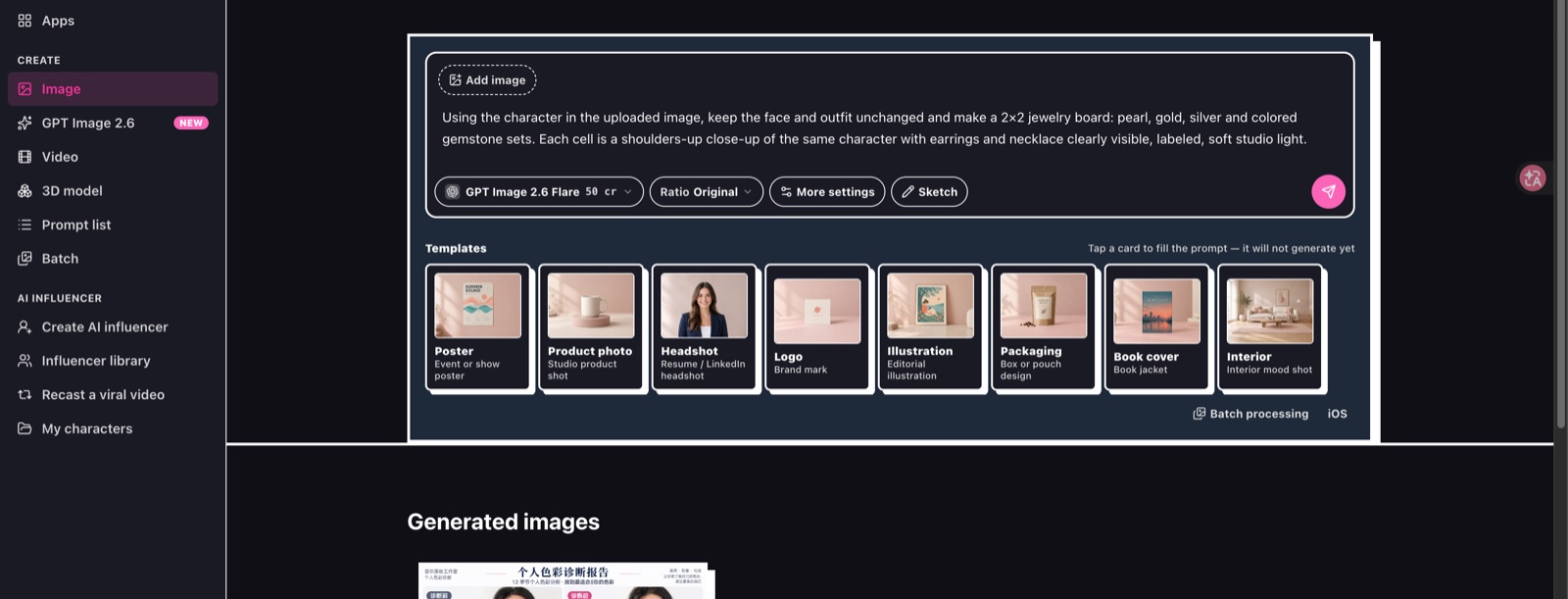
Upload with “Add image”, type the change, send. Source: ChatImg image chat.
What should the prompt say?
Use a three-part formula: change + target + keep.
| Job | Prompt |
|---|---|
| New background | “Change the background to a plain light-gray wall. Keep the person exactly the same.” |
| Remove an object | “Remove the cup on the table. Fill the space with the same tabletop.” |
| Recolor | “Make the jacket navy blue. Keep the fabric texture and everything else.” |
| Relight | “Make it look like golden-hour light from the left. Do not change the face.” |
| Text in the image | “Change the sign text to OPEN. Keep the font and color.” |
Short, specific instructions beat long style lists. For camera-style wording, see the Gemini AI photo prompt guide.
Name the change, name what stays, stop there.
Which tools edit photos from text, and how do they compare?
| Tool | How you edit | Strength | Weak spot |
|---|---|---|---|
| ChatImg | Upload in chat, type the change; pick GPT Image, Nano Banana or Seedream for the same photo | Several models on one photo; free background cutout in the browser | Credits per image on premium models |
| Gemini (Nano Banana) | Upload in the Gemini app, describe the edit | Strong instruction-following and text in images | Inside Google’s app only |
| ChatGPT (GPT Image) | Upload in chat, describe the edit | Complex scene changes in conversation | Can redraw more than you asked |
| Canva | Magic Edit / AI photo editing inside a design | Edits land straight in a layout | Best for design assets, less for photo realism |
| Photoshop Generative Fill | Select an area, type what to fill | Pixel-level control with a selection | Paid desktop app, needs a selection |
| Recraft | Upload and edit with prompts | Copy-ready prompt recipes | Separate account and credits |
Capabilities as described on each tool’s own pages, checked November 19, 2026: Recraft tutorial, Gemini image generation, ChatImg model comparison.
If you want to keep the photo and try more than one model on it, ChatImg puts GPT Image, Nano Banana and Seedream behind the same upload. If you already design in Canva or retouch in Photoshop, their built-in tools save a round trip.
The video below shows the same edit-by-chat idea in ChatGPT Images.
When is text editing the wrong tool?
- Official ID photos: do not let a model touch the face. Remove the background instead; see AI passport photo on a white background.
- Many images of the same person: that is generation with a reference photo, not a single edit; see consistent faces across AI photos.
- Exact pixel work such as product retouching for print: a selection-based editor gives more control.
Text editing is for “change this part”. It is not for “make a new photo of me”.
How do I fix an edit that changed too much?
Send the result back with a narrower instruction: “Undo the change to the face. Keep only the new background.” If it keeps drifting, start from the original again and split the edit into two steps. On ChatImg you can also try another model on the same photo; one may follow “keep everything else” better for that picture.
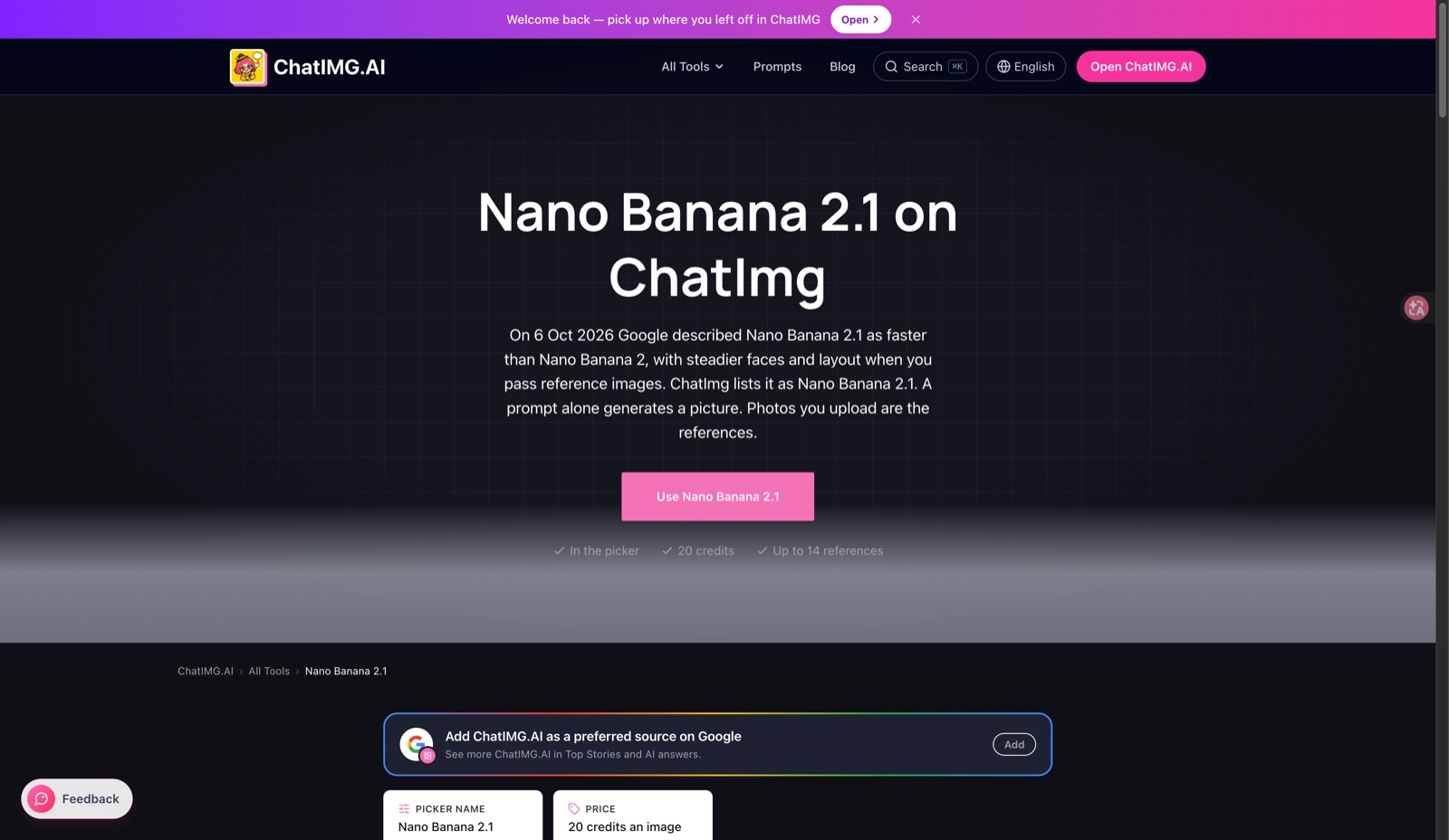
Attach the original as a reference so the model has the face to follow. Source: ChatImg Nano Banana 2.1 page.
FAQ
Do I need to draw a mask?
No. Instruction-based editors infer the region from your words. Photoshop’s Generative Fill is the exception: it edits the area you select.
Is it free?
ChatImg is free to start and the background cutout is free in the browser. Premium models use credits.
Do I need to install anything?
No. ChatImg runs in the browser on desktop and mobile.
Edit the photo you already have: open ChatImg and upload it.
More in this series
- How to Fix AI Image Deformities: Extra Fingers, Warped Faces — Don't Reroll | ChatIMG
- Image to 3D Model: The Complete 2026 Guide — From a Single Photo to Print-Ready, Game-Ready 3D Assets
- Image-to-Image Tools 2026: Style Transfer vs Inpainting vs Background Replacement — Which One Do You Need
- AI Headshot Generator 2026: The Complete LinkedIn & Professional Profile Guide (Free Tools, 5 Styles, Real Results)
- AI Pet Portrait Generator 2026: Oil Painting, Watercolor, Renaissance Pet Art (Etsy Commercial License Guide)