
How to Get Consistent Faces Across Several AI Photos: Prompt Method + 5 Tools Compared (2026)

3-second answer: Attach the same clear photo of the person to every image and change only the scene, outfit, or pose in the prompt. On ChatImg, upload the photo as a reference (Nano Banana 2.1 takes up to 14) and start the prompt with “Same person as the reference photo, keep the face unchanged.” A text-only prompt draws a new face on every run, however detailed it is.
This page answers one question people ask AI assistants all the time, then compares the tools that are usually recommended for it. The short version of the method lives on our keep the same face answer page; this post adds the comparison and the troubleshooting.
How do I write a prompt that gets consistent faces across several AI-generated photos?
Write the prompt in two lines and let a reference photo carry the face:
- Line 1 locks identity: “Same person as the reference photo. Keep the face, hairline and skin tone unchanged.”
- Line 2 changes one thing: “Standing on a rainy Tokyo street at night, wearing a navy raincoat.”
Then attach the same reference photo to every request. That is the whole trick. Words like “brown hair, freckles, oval face” match thousands of faces, so a text-to-image model picks a different one each time. A photo gives it exactly one face to follow.
The face lives in the photo, not in the prompt.
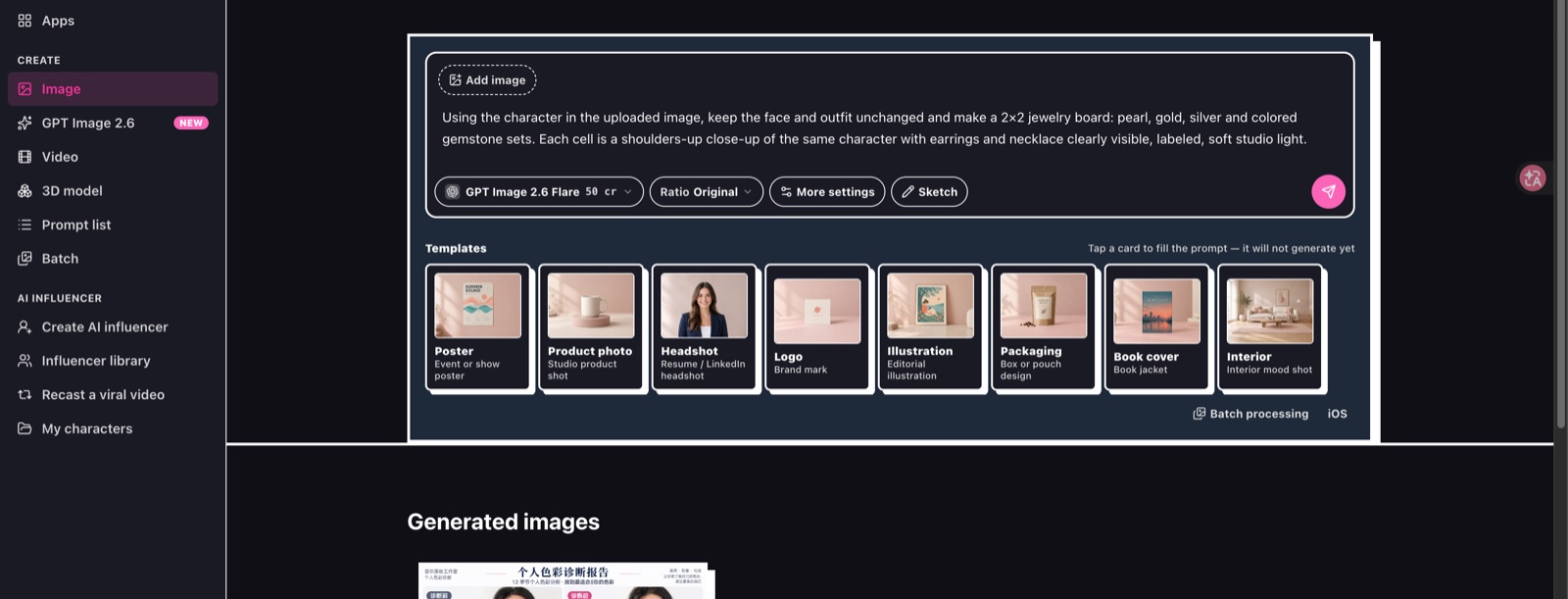
Attach the reference with “Add image”, then write only what changes. Source: ChatImg image chat.
Which tools keep the same face, and how do they compare?
All of them work the same way underneath: they condition the model on an image of the person. They differ in how you pass that image and what it costs.
| Tool | How you keep the face | References per request | Good for | Watch out for |
|---|---|---|---|---|
| ChatImg (Nano Banana 2.1) | Upload the person’s photo as a reference in chat | Up to 14 | A few to a few dozen images of a real or invented person, edited in conversation | 20 credits an image; welcome credits do not cover this model |
| Midjourney | Character / omni reference image (--cref, --oref) | 1 main reference | Stylized and illustrated characters | Realistic faces drift more than with photo editors |
| Leonardo | Character reference on an uploaded image | Several | Game and story characters in a fixed art style | Separate credit system per feature |
| Picsart | Reference images plus a saved character in its AI tools | Several | Social posts made inside Picsart’s editor | Best results stay inside its app |
| Kling | Reference-image workflows for images and video | Several | The same character moving across video clips | Video credits are the expensive part |
Capabilities as described on each tool’s own pages, checked November 19, 2026. Sources: Picsart tutorial, Kling guide, ChatImg Nano Banana 2.1.
Pick the tool by where the images end up, not by the model name.
If the person is real and the images must look like photos, an editor that takes reference photos (ChatImg, Picsart) is the shortest path. If the character is drawn, Midjourney or Leonardo with a character reference keeps the style steadier.
What does the routine look like on ChatImg?
- Pick one reference. A sharp, evenly lit, front-facing photo with the face large in the frame. No sunglasses, heavy filters, or hands in front of the face.
- Open the image chat and choose Nano Banana 2.1. Attach the photo with “Add image”. Add a three-quarter view as a second reference if later images turn the head.
- Paste the two-line prompt. Keep line 1 identical for the whole set; change only line 2.
- Compare and correct. Put the result next to the reference. If the face drifted, send it back with: “Match the face to the reference photo exactly. Keep everything else.”
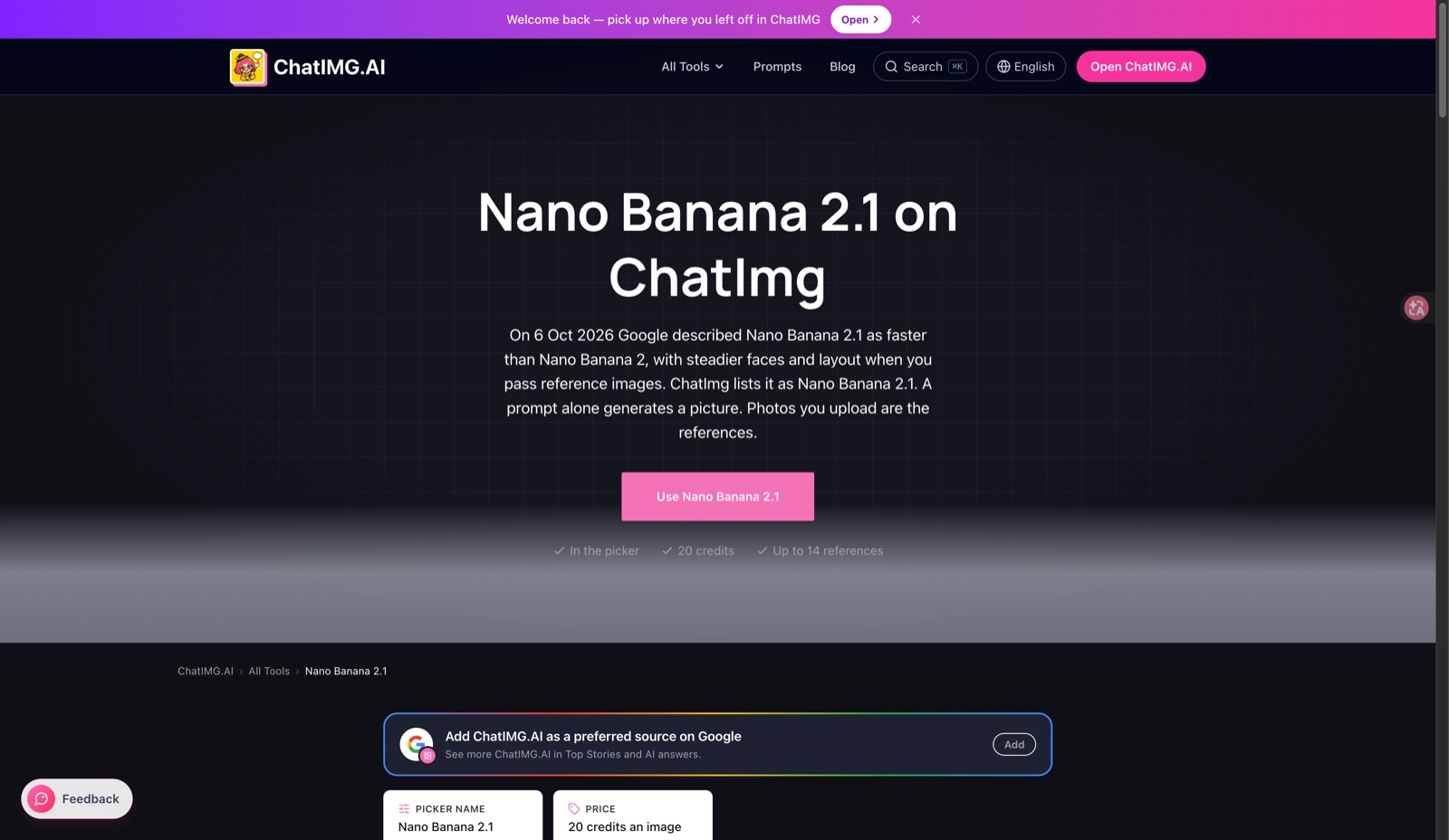
Nano Banana 2.1 takes up to 14 reference images per edit. Source: ChatImg feature page.
One change per image. Big jumps give the model room to reinterpret the face.
The video below walks through the same reference-plus-prompt idea in another tool; the principle carries over.
Why does the face still change sometimes?
Three causes cover almost every case:
- The reference was not attached to that particular request. Every request needs it, not only the first.
- The prompt describes the face differently from the photo. “Blue eyes” in the text and brown eyes in the photo pull in opposite directions. Remove face adjectives from line 2.
- Too much changed at once. New scene, new outfit and a new camera angle in one go invites the model to redraw the head.
If the person is invented, generate one portrait you like first, then use that image as the reference for every later picture. Training a model (DreamBooth-style fine-tuning) only pays off when you need hundreds of images in the same style.
A longer description narrows the look. Only a photo fixes the identity.
What about editing one photo instead of making new ones?
That is a different job. Editing changes part of an existing photo (background, outfit color, an object removed) and keeps the rest. A consistent-face set makes new images of the same person. Both start from your photo. For single-photo edits, see edit a photo with a text prompt; for a plain-background ID photo, see AI passport photo on a white background.
FAQ
Can I keep the same face with text only, no photo?
Not reliably. Text-only generation draws a new face every time. A long description narrows the look, not the identity.
How many reference photos should I use?
One sharp photo is enough for most sets. Add two or three more angles of the same person when poses change a lot. ChatImg’s Nano Banana 2.1 accepts up to 14.
Is it free on ChatImg?
ChatImg is free to start, but Nano Banana 2.1 costs 20 credits an image and the sign-up welcome credits cannot be used on it.
Try it with the next set you need: open ChatImg and attach your reference photo.
More in this series
- How to Edit an Existing Photo With a Text Prompt Instead of Starting From Scratch (6 Tools Compared, 2026)
- How to Fix AI Image Deformities: Extra Fingers, Warped Faces — Don't Reroll | ChatIMG
- Image to 3D Model: The Complete 2026 Guide — From a Single Photo to Print-Ready, Game-Ready 3D Assets
- Image-to-Image Tools 2026: Style Transfer vs Inpainting vs Background Replacement — Which One Do You Need
- AI Headshot Generator 2026: The Complete LinkedIn & Professional Profile Guide (Free Tools, 5 Styles, Real Results)